 Configuring Your Site in FileZilla
If you are using Expressions Web or Dreamweaver to manage web page files on your web site, those applications provide a built-in FTP client that manages the uploading of the files once you have created and/or edited them.
There are other occasions where you may want to upload files to your web site not using a web page editor. In these cases, we recommend using a popular and free FTP client application called FileZilla.
Filezilla provides simple but powerful file upload/download capabilities for transferring files to and from your web site. It can be downloaded for free from filezilla-project.org/index.php.
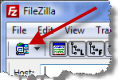
Configuring Your Site in FileZillaOnce you have downloaded and installed FileZilla, run it and click on the "Manage sites" icon in the top left hand corner of the application. This screen will allow you to enter your site and username and password information so that Filezilla can connect to your web site.
In the "Site Manager" dialog window, click on the "New Site" button and give the site a name - such as "File Uploads Area on MySite.com"
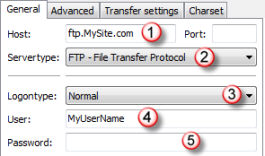 Then, on the "General Tab", enter the five
items that will identify your site and login credentials:
Then, on the "General Tab", enter the five
items that will identify your site and login credentials:
Provide the hostname for access to your website via ftp.
Select "FTP" as the "server type"
Select "Normal" as the "logon type"
Enter the username for your login
Enter the password for your login
Once you have provided all of the login information, click on the "Connect" button to connect to your web site using the parameters that you have provided.
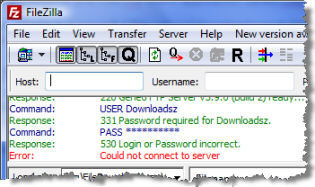 If Filezilla does not connect, go back and double
check all of the information that you have provided in the above process.
If Filezilla does not connect, go back and double
check all of the information that you have provided in the above process.
Filezilla will tell you why it cannot connect via the log window in the application. Note in this graphic on the right, Filezilla is indicating that the login name or password that was supplied was incorrect.
Another error message might be that it cannot find the server. This generally means that the name that you provided in the "Host" field above is incorrect.
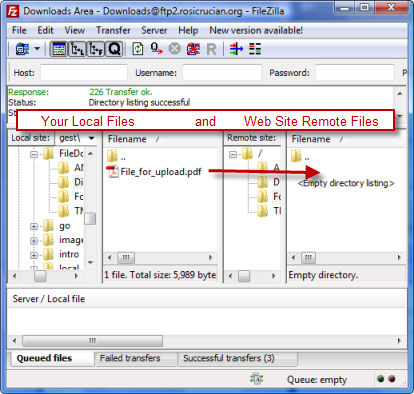 To upload files to your web site, locate the files
on your local file system and drag them to the appropriate place on your
web site.
To upload files to your web site, locate the files
on your local file system and drag them to the appropriate place on your
web site.
Different ftp login names will take you to different directory locations on your web site. Generally, the main FTP username is the same as your control panel user name and additional FTP accounts are created for both webmasters and for others to upload files to your web site.
You will need to ensure that you are using an appropriate FTP username for the task that you wish to perform.